Pages & Repair pages
The pages Barbican creates for your public site, how they're assembled, and the one-click repair if any go missing.
The menu points at pages, and Barbican creates them for you. When the plugin is activated it provisions a set of WordPress pages — one for each public and contact-facing view — and links the menu to them. This page covers which pages those are, how they’re put together, and how to restore one if it’s ever deleted.
The pages Barbican creates
Section titled “The pages Barbican creates”Each page is an ordinary WordPress page that hosts Barbican blocks. They come in three kinds:
| Page | What it shows | In the menu |
|---|---|---|
| Properties | The searchable listings browse page | Yes |
| Property | A single listing (reached at /properties/<id>) |
No — see below |
| Agents | The agent directory | Yes |
| Agent | A single agent (reached at /agents/<id>) |
No |
| Open Houses | Upcoming open houses | Yes |
| Open House | A single event | No |
| Office | Your office profile | Yes |
| Profile | The signed-in contact’s editable profile | Yes |
| My Listings | A contact’s saved listings | Yes |
| My Notes | A contact’s notes with their agent | Yes |
The detail pages — Property, Agent, Open House — aren’t in the menu on purpose.
There’s just one Property page, and Barbican routes every listing URL
(/properties/<id>) to it, filling it with that listing’s data. The same holds for
agents and open houses. That’s why they’re reached through their list, not a menu
item. (See Navigation
for how the list item stays highlighted while you’re on a detail page.)
How a page is assembled
Section titled “How a page is assembled”Every page hosts Barbican blocks, and you edit it like any other page — in the block editor, with the full range of WordPress tools.
Each page is seeded from a pattern: a ready-made arrangement of Barbican’s small blocks. The simpler pages are a short arrangement; the richer ones — Properties, the Property detail, Office, Profile, the open house pages — combine several (breadcrumbs, a heading, a filter, a list, and so on). Either way it’s just blocks: nothing about the arrangement is fixed, so you can reorder it, drop pieces you don’t want, or add your own.
That composition is the heart of how Barbican works, and the next two pages cover it: Patterns (the ready-made arrangements) and Blocks (the individual pieces).
Barbican won’t overwrite your edits
Section titled “Barbican won’t overwrite your edits”Provisioning runs once. Barbican creates a page only if it doesn’t already have one, so activating the plugin — or updating it later — never overwrites changes you’ve made to a page’s content. Your edits are safe.
The trade-off: because Barbican deliberately leaves existing pages alone, it also won’t automatically bring back a page you delete. That’s what Repair pages is for.
Repair pages
Section titled “Repair pages”If a Barbican page gets deleted or trashed — its menu item breaks, or a URL starts 404ing — you can restore it in one click. On the Plugins screen, find Barbican and choose Repair pages:
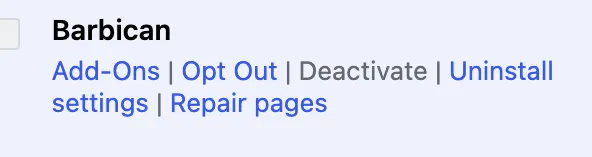
Repair pages:
- Recreates only the pages (and the menu) that are missing — deleted or trashed.
- Leaves your existing pages untouched, edits and all. It’s additive, not a reset.
- Rebuilds the navigation menu if it was removed, and refreshes the listing URLs.
When it finishes, Barbican shows how many pages it recreated. If nothing was missing, it simply reports that none needed repair.
You’ve seen that the richer pages are seeded from patterns. Next: Patterns — the ready-made block arrangements Barbican ships, and how to make them your own.