Properties
The Property detail page — your listings, the richest RESO resource, and how it's organized.
Properties are your listings — the heart of Barbican and the richest RESO resource, with hundreds of standardized fields. Open one from Listings → Properties. The detail page is organized as a series of stacked bands, top to bottom; this page covers each one.
The hero is the listing at a glance: the photo gallery, status, price (with any price change), key stats, and highlight badges.
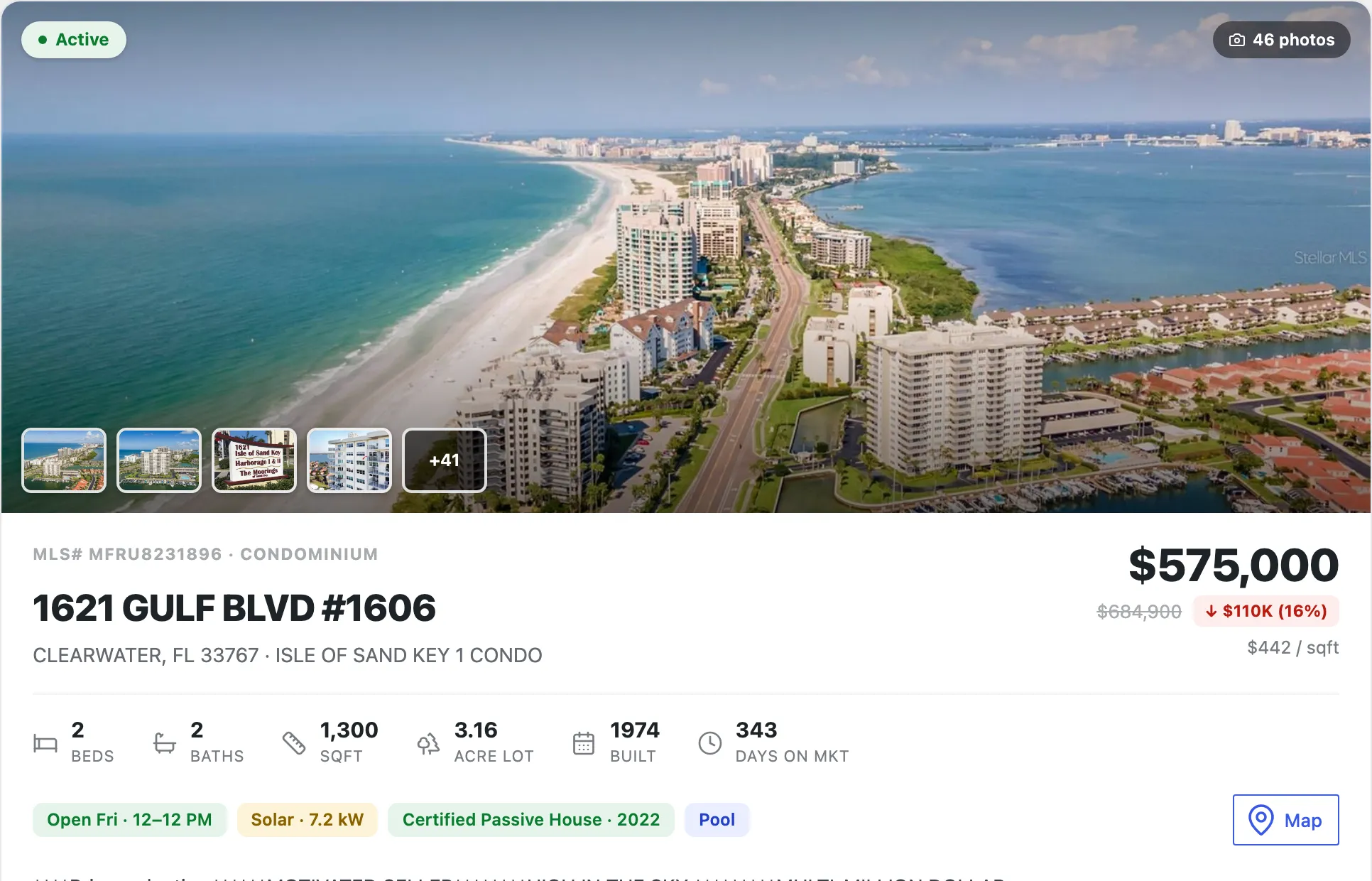
- The gallery shows the cover photo with a thumbnail strip; manage the images in the Media band below.
- The price shows the current list price, the original (struck through) when it has changed, and the change amount.
- Highlight badges surface notable facts drawn from the record and its collections — an upcoming open house, green/energy certifications, a pool, and more.
- Map opens the listing’s location.
Identity fields
Section titled “Identity fields”Just under the hero, the most defining fields are lifted out for quick access: Property Type, Property Sub Type, and the Universal Property ID. Edit them inline like any field.
Property details
Section titled “Property details”This is the full RESO field set, organized into tabs down the left. The groupings come from the RESO Data Dictionary, so related fields sit together the industry standard way.
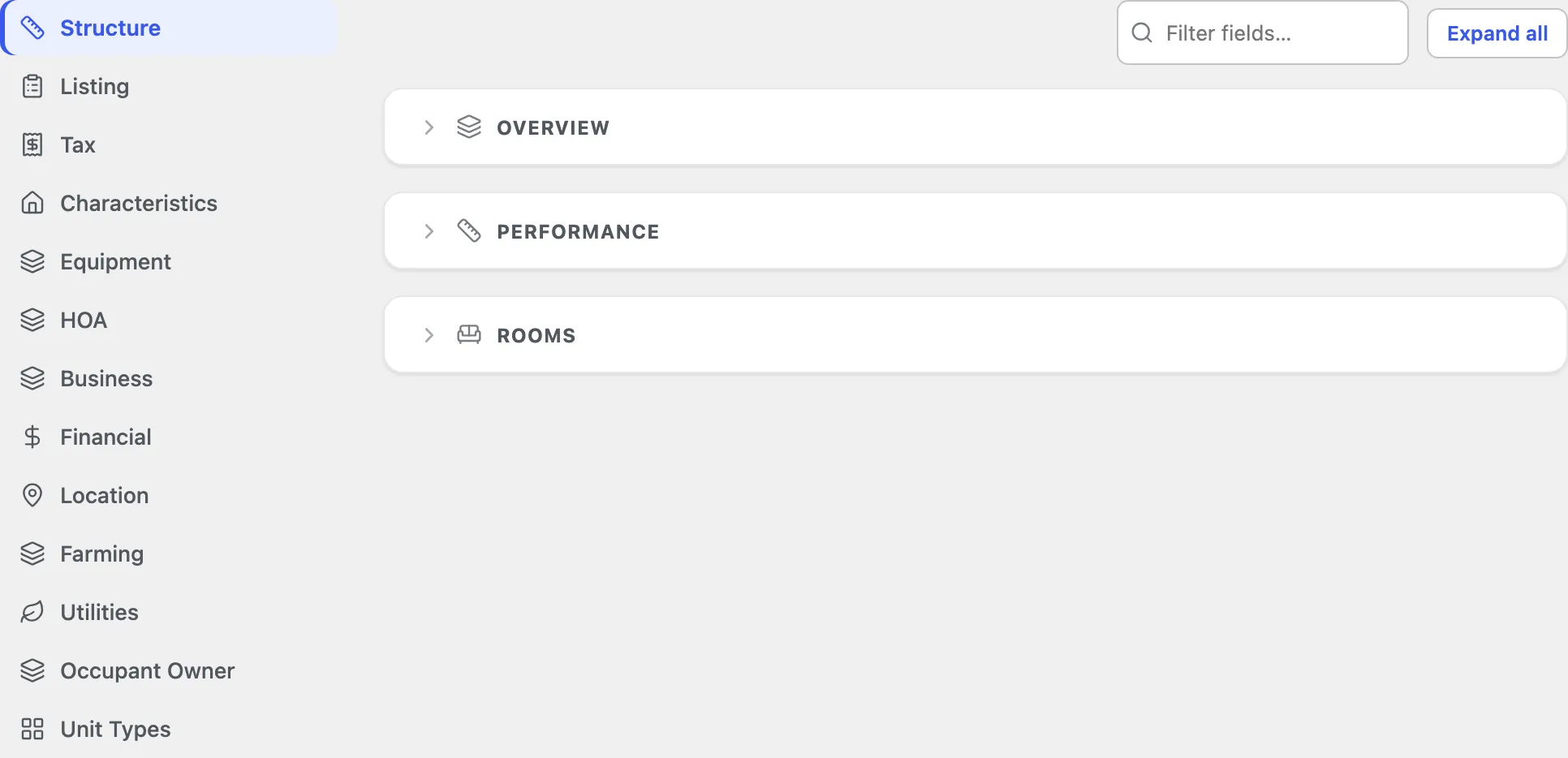
Edit any field in place; see Editing fields for how the tabs, inline help, and editor work. Two things specific to Properties:
- Some fields are read-only because Barbican keeps them in sync for you. For example Rooms Total, the photo/video/document counts, and Unparsed Address are derived from the property’s collections and address parts — editing them by hand wouldn’t stick, so they display but can’t be edited.
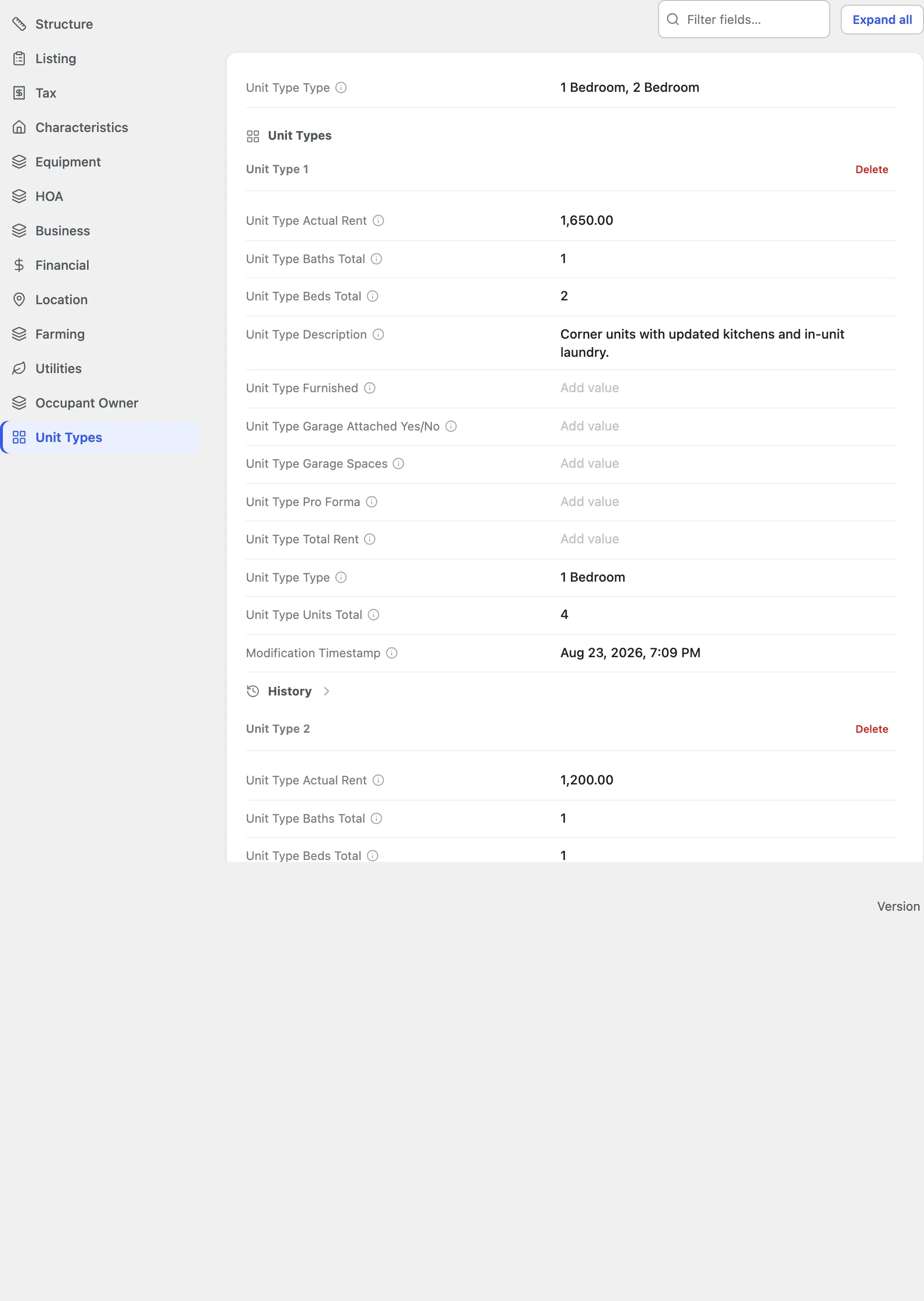
- Specialized RESO collections live inside their tabs. Rather than separate screens, collections appear within the relevant group: Rooms (under Structure), Unit Types, Open Houses, Green Building Verification, and Power Production. Each is an inline collection you add to and edit in place, and each keeps its own activity history.
Here’s the Unit Types tab, showing that collection with two unit-type records:
The Media band holds all imagery and files for the listing, grouped by type: Photos, Videos, Floor Plans, Branded and Unbranded Virtual Tours, and Documents.
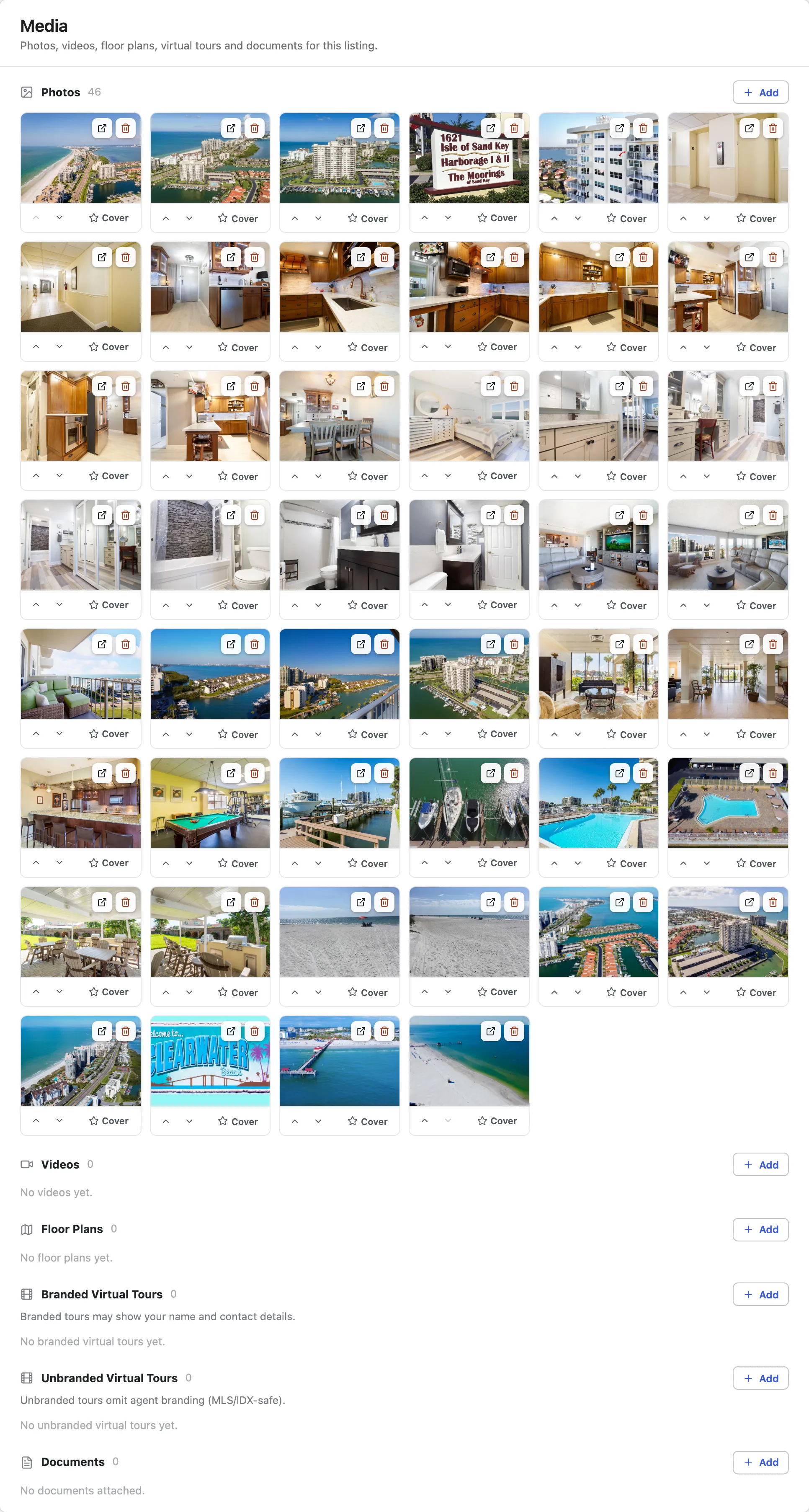
- Click Add on a category to upload.
- Set a Cover photo, and reorder photos with the up/down controls.
- Branded tours may show your name and contact details; unbranded tours omit agent branding for MLS/IDX use.
Online booking · Lock boxes · Engagement
Section titled “Online booking · Lock boxes · Engagement”Below Media are three staff-facing bands:
- Online Booking — enable and configure showing requests for this listing.
- Lock boxes — record the lock boxes that hold access credentials for the property.
- Engagement — view analytics for the listing, such as recent detailed views.
Activity history
Section titled “Activity history”The last band is the listing’s activity history — the full audit trail of what changed on the record, when, and by whom.