First-time setup
The one-time office and member setup Barbican requires before you can use the plugin.
The first time you open Barbican after activating it, you’ll complete a one-time, two-step setup before the plugin unlocks: first your office, then your member profile. Both are required, and you’ll only do this once.
Why setup is required
Section titled “Why setup is required”Barbican is built on the RESO data standard, where everything — listings, agents, and contacts — exists in the context of an office (a brokerage) and is attributed to a member (a person). Until those two records exist, the rest of the plugin has nothing to attach data to, so Barbican gates access until setup is complete.
Step 1 — Set up your office
Section titled “Step 1 — Set up your office”Because Barbican can’t manage listings or agents without an office to attach them to, this is the first screen you’ll see:
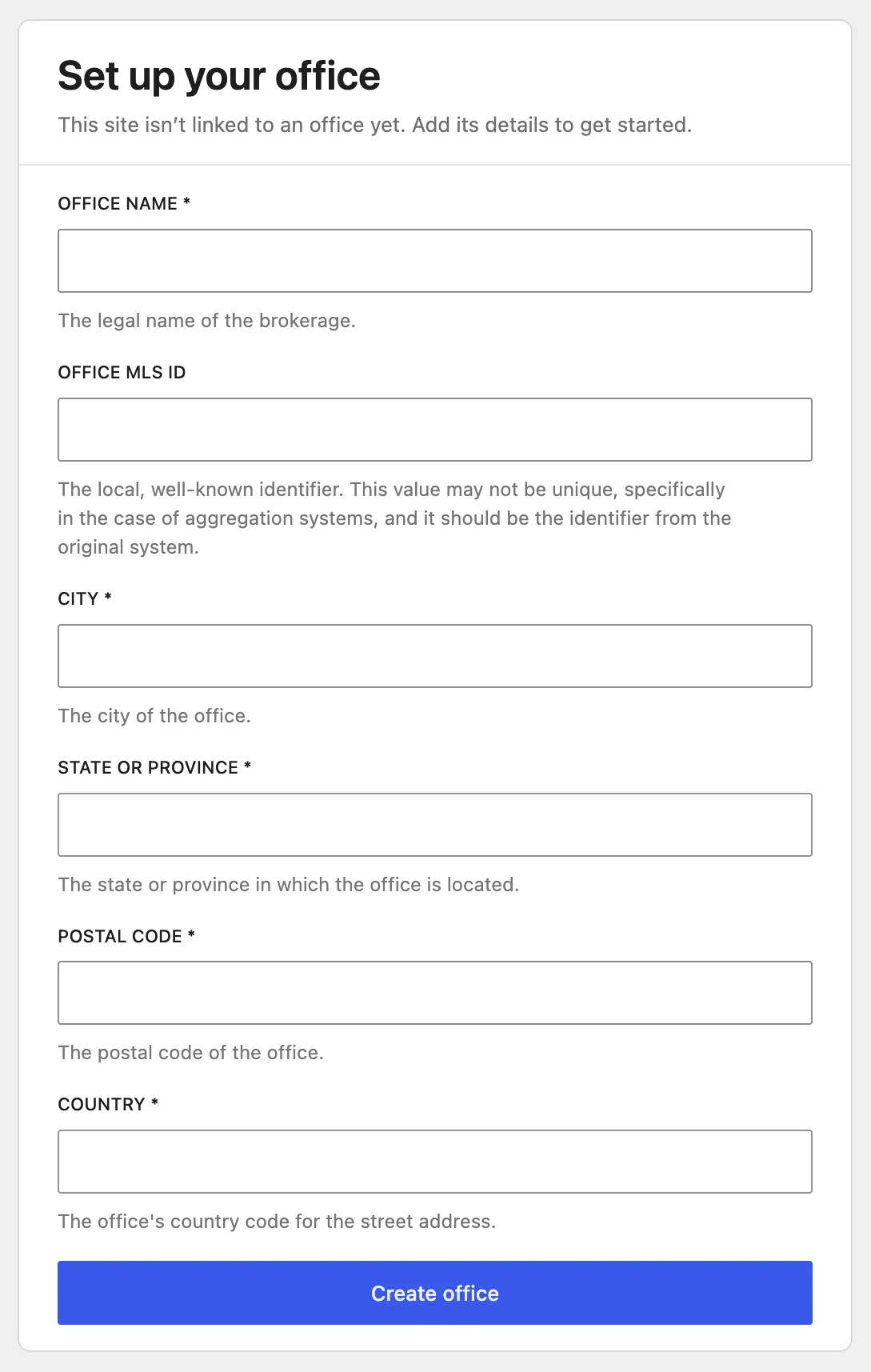
Enter your brokerage’s details. All fields are required except Office MLS ID, which is optional. When you’re done, click Create office.
Step 2 — Set up your member profile
Section titled “Step 2 — Set up your member profile”Next, Barbican links your current WordPress user to a RESO member record:
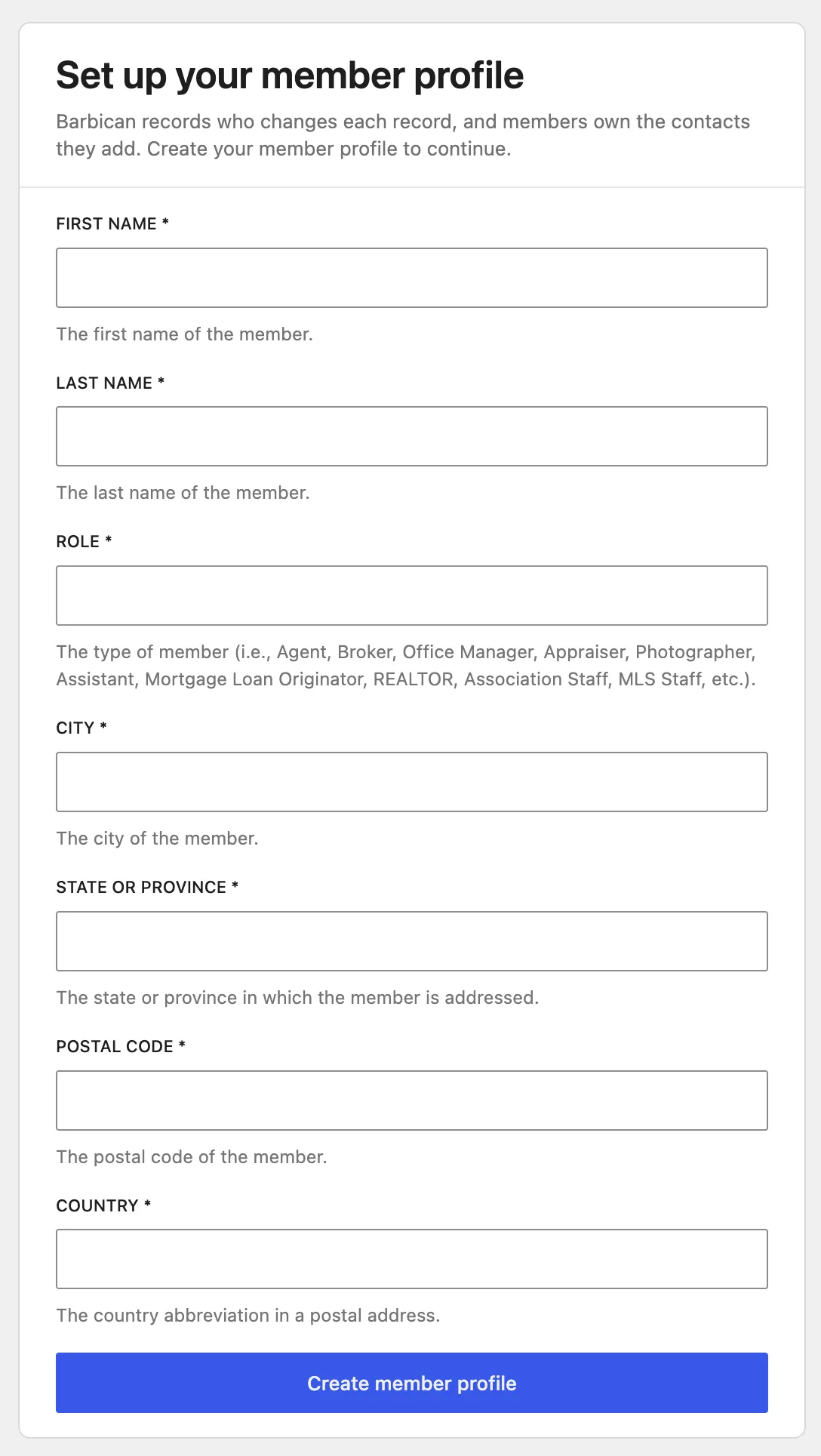
This step does not create a new WordPress user — it connects the account you’re already signed in as to a member profile. Fill in your name, choose a role (see below), and enter your address. Then click Create member profile.
Why every user needs a member profile
Section titled “Why every user needs a member profile”Barbican keeps a full history of who changed each record — part of the RESO standard’s audit trail — and it identifies people by their member profile. So every WordPress user who can touch Barbican data needs one, administrators included, even if they aren’t a real estate professional.
Choosing a role
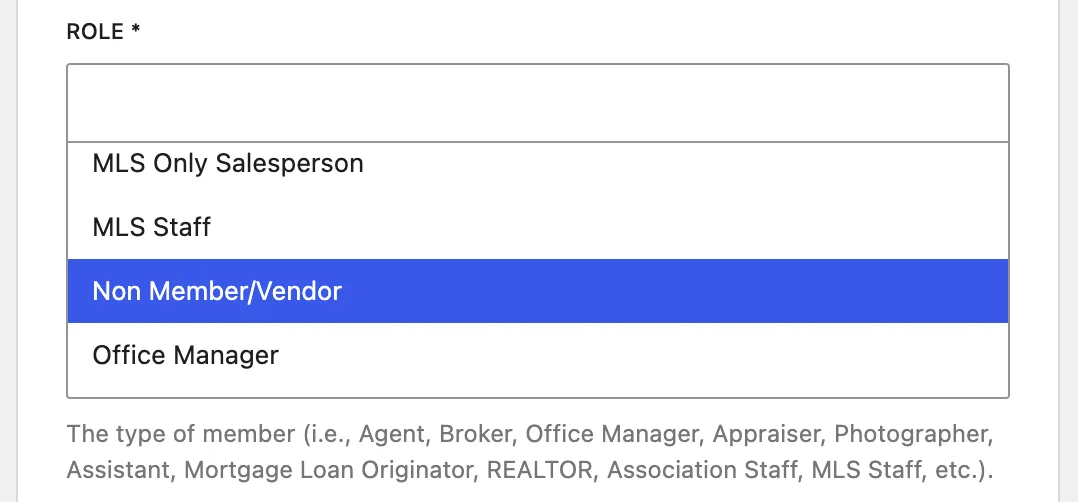
Section titled “Choosing a role”The Role describes what kind of member you are — such as Agent, Broker, Office Manager, or MLS Staff:
You’re all set
Section titled “You’re all set”Once both records exist, the setup gate lifts and the full Barbican admin opens. Your office and member records now have full configuration pages — continue to Office and Your profile.