Editing fields
How Barbican's inline field editor, grouped tabs, and in-app field help work across every resource.
Every resource in Barbican — your office, members, properties, and more — shares the same detail layout: a set of fields grouped into tabs, edited in place. Learn it once here and it applies everywhere.
Grouped tabs
Section titled “Grouped tabs”Fields are organized into tabs (such as Identity, Contact, and Address). These groupings come from the RESO Data Dictionary, so related fields sit together the same way they do across the industry.
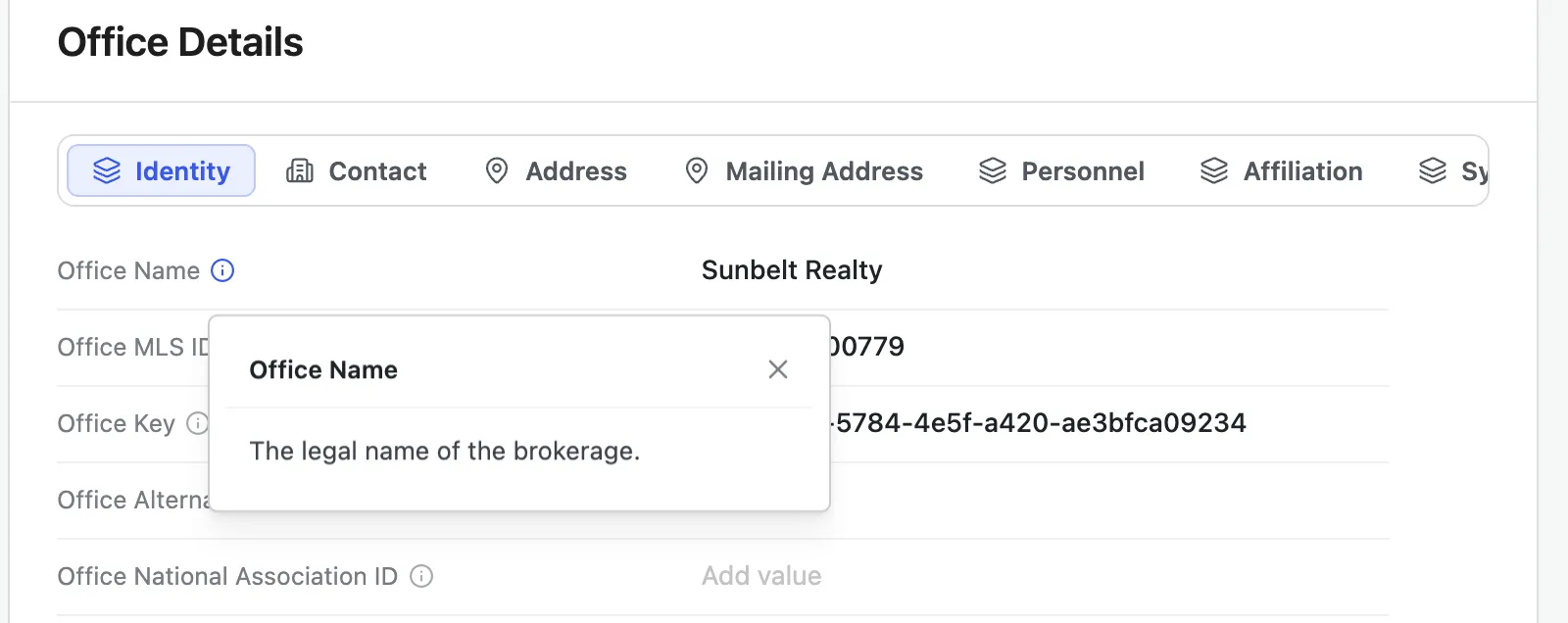
In-app field help
Section titled “In-app field help”Most fields have an i icon next to their label. Hover or click it to read
that field’s definition — pulled directly from the RESO Data Dictionary. This is
your authoritative reference for what each field means, so the docs don’t repeat
every definition here.
Editing a value
Section titled “Editing a value”Editing is available to staff members.
- Click any field’s value — or Add value on an empty field — to open the editor, make your change, and save.
- Some fields are read-only (for example, system timestamps like Modification Timestamp). These display their value but can’t be edited.